


HP
4.135.60K Reviews
App Specs
- Version
- 26.2.0.6624
- Updated On
- License
- Free
- Downloads
- 100,000,000+
- Developer
- HP Inc.
- Categories
- Productivity
- Platform
- Android, iOS
Screenshots
 Analysis by AppCompare
My first-day advice is to treat HP as a companion for an HP printer, rather than as a general document app that happens to print. That expectation makes the setup easier to understand: its value is bringing common printer tasks and phone-based document handling into one place. I’d start with one simple job—connecting a printer or making a scan—before exploring the other options. That small first success makes the app’s purpose clear without turning setup into a project.
What to expect from a printer companion
HP is a free productivity app from HP Inc., available to everyone and running on Android 10 or later. Its version is 20.2.0.6076. It has been around since November 21, 2012, and its broad uptake—over 100 million installs—makes it a familiar choice for people managing compatible HP printing from a phone. Its average rating is 4.2 from around 861,000 ratings, with roughly 34,000 written reviews.
Those figures suggest a widely used utility, but they don’t promise that every printer, phone, file, or home network will behave identically. I’d think of it as a convenient control point for routine tasks, not a replacement for every desktop printing workflow. If you already rely on a particular printer and want to scan or send a file without moving to a computer, the basic idea is appealing. If you don’t use an HP printer, much of the app’s appeal may not apply to you.
Make the first setup manageable
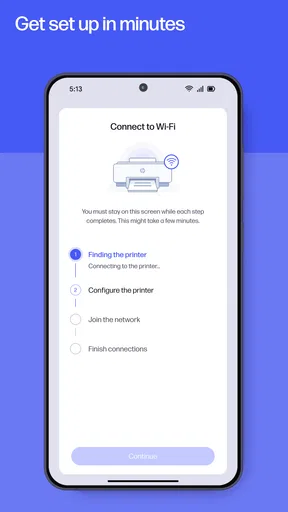
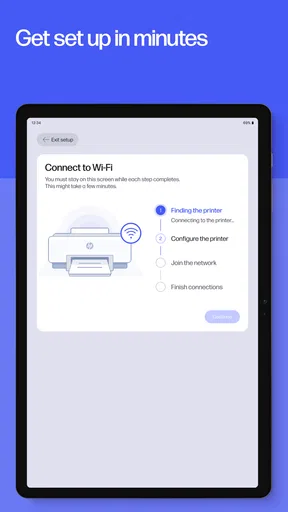
When I’m helping someone get started, I suggest having the printer available and powered on before opening the app. Follow the connection prompts, and take a moment to check that the phone and printer are on the intended network if discovery doesn’t happen as expected. A printer that is asleep, offline, or connected differently can make a simple setup feel more complicated than it is. I’d resolve that first rather than repeatedly tapping through the app.
Once the printer is available, try a small, low-stakes task before sending an important document. That could mean scanning a single page or printing a short file. This gives you a chance to see where the app puts its controls and how your printer responds, without wasting paper or discovering a connection problem when there’s a deadline. Starting with one test page is a practical way to build confidence, especially if you rarely print from your phone.
Get a useful result on your first try
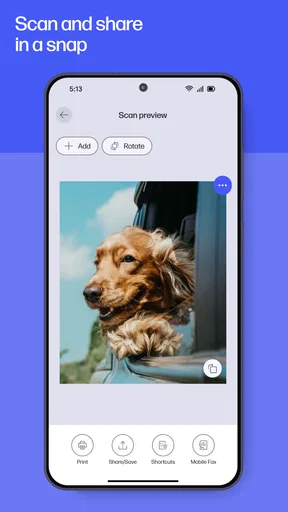
For a first scan, lay the page flat and make sure the text is well lit and fully inside the camera’s view. I’d use a receipt or a single-page form as a test, then check the saved result at a larger size before sharing it. A quick inspection helps catch a clipped edge or a shadow while the paper is still in front of you. For everyday records, that extra look is more useful than assuming a scan is ready just because the capture finished.
HP’s app can save scans as PDF or JPEG, which gives you a straightforward choice: PDF is usually easier to send as a document, while JPEG can suit a single image. Before sharing, I’d consider what the recipient needs to do with the file. A form that must remain readable is better treated as a document; a picture intended for quick viewing may be fine as an image. Choosing deliberately can prevent the small nuisance of having to scan the same page again in another format.
Worth Reading Before You Choose

EA SPORTS FC Mobile 26 Is a Bigger Football Game, but It Takes Time

Flipboard Shows What News Apps Must Do Beyond the Feed

Switching to Android Auto Means Rethinking Your Driving Routine

Google Calendar Makes a Crowded Week Easier to Manage

Ludo King Makes the Most of the Minutes Between Plans

Baby Panda World Brings Quick Play to Modern Phones, but Its Game Library Feels Busy
Turning Paper into Pixels
Alright, first things first. The feature that makes the HP Smart app a must-have is its ability to scan documents directly from your phone. Gone are the days of clunky scanners and complicated setups. Just open the app, tap on the scan button, and voila! Your document is digitized in a snap.
Now, I know what you're thinking: "Does it really work that well?" Short answer: Yes! The quality of the scans is pretty impressive. Whether it's a full-page article or just a small receipt, the app captures it all with crisp clarity. Plus, you can save your scans as PDFs or JPEGs, depending on your needs. Handy, right?
Print and Share Like a Pro
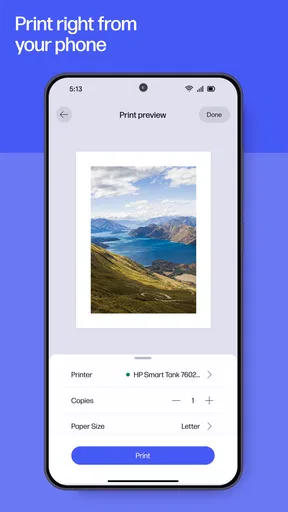
But wait, there's more! The app isn't just for scanning. It also lets you print documents directly from your phone. Whether it's a photo or an important email, you can send it straight to your HP printer with just a few taps. And setting it up is a breeze. Even if you're not the most tech-savvy person, you’ll find the process super intuitive.
Another neat feature is the ability to share documents. Say you’ve scanned a document and need to send it to a colleague. You can easily share it via email, Google Drive, or even directly to Dropbox. It's all about keeping things seamless and swift.
Use the tools with a little purpose
The crop, rotate, and color adjustments are useful for tidying a scan, but I’d use them to improve legibility rather than to make a page look polished. Cropping away a dark border can make a receipt easier to read; rotating a sideways page saves the next person from turning their screen. Keep the original page nearby until you’ve checked the edited result, particularly when a form contains small print or handwritten details.
A realistic use for the app is handling household paperwork as it arrives. I might scan a receipt after a purchase, save it in the format that suits where I’m keeping it, and share it when someone else needs a copy. For a school form, I’d check every edge and confirm the text is readable before sending it. This is a modest workflow, but it can save the trip to a computer for one page. It is less compelling for a large batch of papers, where a dedicated scanner’s feeder and desktop controls may be faster.
Print and share without surprises
Printing from a phone is most useful when the file is already on the device and the printer is ready. I’d preview the document and check its page orientation before sending it, especially for a form or a multipage file. A phone is convenient for quick jobs, but it gives less room to inspect layout than a computer does. For a document where margins, page breaks, or exact placement matter, I’d use a desktop print workflow and inspect the settings there.
Sharing is a separate step worth checking: after sending a scan, make sure you selected the intended destination and file. Email, Google Drive, and Dropbox are useful routes for common handoffs, but the best choice depends on how the recipient will access it. If the file contains personal paperwork, pause before sharing and verify the address or destination. The app can make the transfer quick; it can’t make a careless recipient choice safe.
Ink awareness and everyday trade-offs
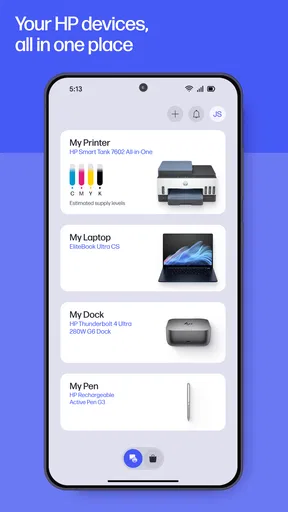
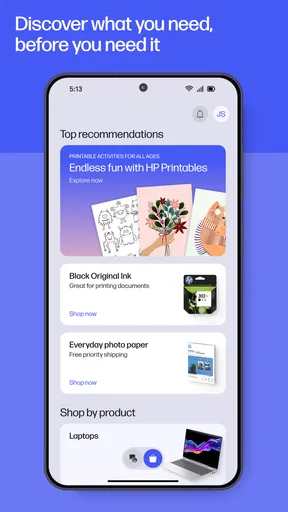
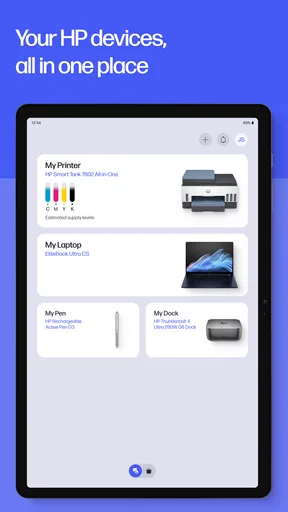
Checking ink levels in the app can help you avoid discovering an empty cartridge halfway through a needed print job. I’d treat the displayed level as a planning aid and check it before a large or urgent print, rather than waiting until the last moment. The option to order more ink may be convenient if you prefer handling supplies from the same place, while buying elsewhere or managing supplies independently may suit people who already have a routine they like.
Draft mode is a sensible choice for internal notes or pages where appearance is secondary, but I wouldn’t use it automatically for a document that must be easy to read or presentable. It’s a useful trade-off, not a universal setting. Likewise, a phone scan can be entirely adequate for ordinary records but is not always the right tool for archival work, delicate originals, or pages that need consistent professional reproduction.
When I’d choose another approach
Compared with a general mobile scanning app, HP’s main advantage is having scanning and HP printer tasks together. If your main goal is to digitize documents and you rarely print, a scanner-first app may fit your habits better. If you print from different manufacturers, a broader printing solution or the computer’s built-in print controls may be less tied to one printer family. On the other hand, for someone who owns an HP printer and occasionally scans, switching between several utilities can be more trouble than using one familiar place.
I wouldn’t choose this as my main tool for editing long documents, organizing a large archive, or preparing print jobs that need precise layout control. Those jobs are usually easier on a computer, where files and page settings are more visible. Nor is it a must-have for someone without an HP printer who only needs to scan a page now and then. Its best audience is people who already have an HP device and value quick, ordinary print-and-scan tasks over a full desktop workflow.
More Than Just Scanning and Printing
If you think that’s all the app has to offer, think again. The HP Smart app also offers some nifty editing tools. You can crop, rotate, and adjust colors right within the app. It's like having a mini photo editor alongside your scanner.
And for those of us who are environmentally conscious, there's an option to print in draft mode to save on ink. Plus, you can keep track of your ink levels and even order more through the app. It's these small conveniences that really make a big difference.
Common points of confusion
If the printer doesn’t appear during setup, I’d check its power and network connection before assuming the app is broken. If a print job fails, I’d also confirm the printer is ready and try a small file; that separates a connection issue from a problem with one particular document. When a scan looks wrong, check the page position and lighting, then capture it again before spending time adjusting the image. These simple checks are often more useful than changing several things at once.
Another easy mistake is treating “scan,” “save,” and “share” as one action. I’d first inspect the captured page, choose the file format that suits its purpose, and then send it to the right place. If you are printing something important, do a short test when practical and keep the original file available. This approach is especially reassuring for first-time users because it gives each stage a clear checkpoint.
A good fit for the right kind of printing
Students can use the app for occasional handouts, forms, and quick scans, while households may find it handy for receipts and paperwork that needs to be passed along. People working from home may appreciate sending a photo or document to a nearby HP printer without opening a laptop. In each case, the value comes from convenience, not from replacing a full office setup. If printing is rare and scanning is the only need, a dedicated scanning workflow may be simpler; if printing is frequent and exact formatting matters, a computer remains the safer choice.
Final Thoughts
In a world where efficiency is key, the HP Smart app truly stands out. It simplifies everyday tasks and makes managing your documents a breeze. Whether you're a student, a professional, or just someone who loves to stay organized, this app is a game-changer.
So, if you're tired of dealing with old-school scanners or just want a more streamlined way to handle your documents, give the HP Smart app a try. It's like having an office on-the-go, and trust me, once you start using it, you'll wonder how you ever managed without it.
Pros
- User-friendly interface for easy navigation.
- Comprehensive tools for document management.
- Seamless integration with cloud services.
- Efficient performance with minimal lag.
- Regular updates enhance functionality.
Cons
- Limited offline capabilities.
- Occasional sync issues with cloud.
- In-app purchases can be pricey.
- Requires stable internet for full features.
- Some features have a steep learning curve.
FAQs for HP
What features does the HP app offer for printer management?
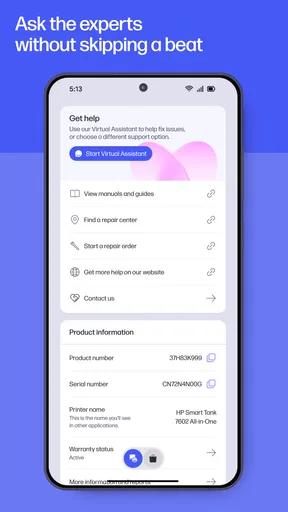
The HP app provides a comprehensive suite of features for printer management. Users can print, scan, and share files directly from their mobile devices. It also offers remote access to printer settings, ink level monitoring, and the ability to order supplies. Additionally, the app supports various file formats and cloud services, enhancing convenience.
Is the HP app compatible with all HP printers?
While the HP app supports a wide range of HP printers, compatibility may vary depending on the printer model and its network capabilities. It is advisable to check the app's compatibility list on the official HP website or within the app store description to ensure your specific printer model is supported.
Does the HP app require an internet connection to function?
An internet connection is required for certain features of the HP app, such as remote printing, accessing cloud services, and receiving firmware updates. However, basic functions like printing via Wi-Fi or Bluetooth can be performed without an active internet connection, provided the printer and device are connected on the same network.
How secure is my data when using the HP app?
The HP app employs robust security protocols to ensure your data's safety. It includes encryption for data transfers and secure cloud storage options. Users are advised to keep the app and their printer firmware updated to benefit from the latest security enhancements and to review HP’s privacy policies for comprehensive information.
Can I use the HP app on both Android and iOS devices?
Yes, the HP app is available for both Android and iOS platforms. It is designed to provide a seamless experience across devices, allowing users to manage their printers with ease regardless of their mobile operating system. Ensure your device meets the app’s minimum system requirements for optimal performance.


